
ShopWired
ShopWired Integration for UK Address Search and Validation
Features
- Address autocompletion on:
- Checkout (shipping and billing pages)
- User registration page
- Account details page
- Checks if the API Key is usable before enabling autocomplete
- Populates organization name from selected address
If you need support, you can reach out to us on our support page.
Screenshots
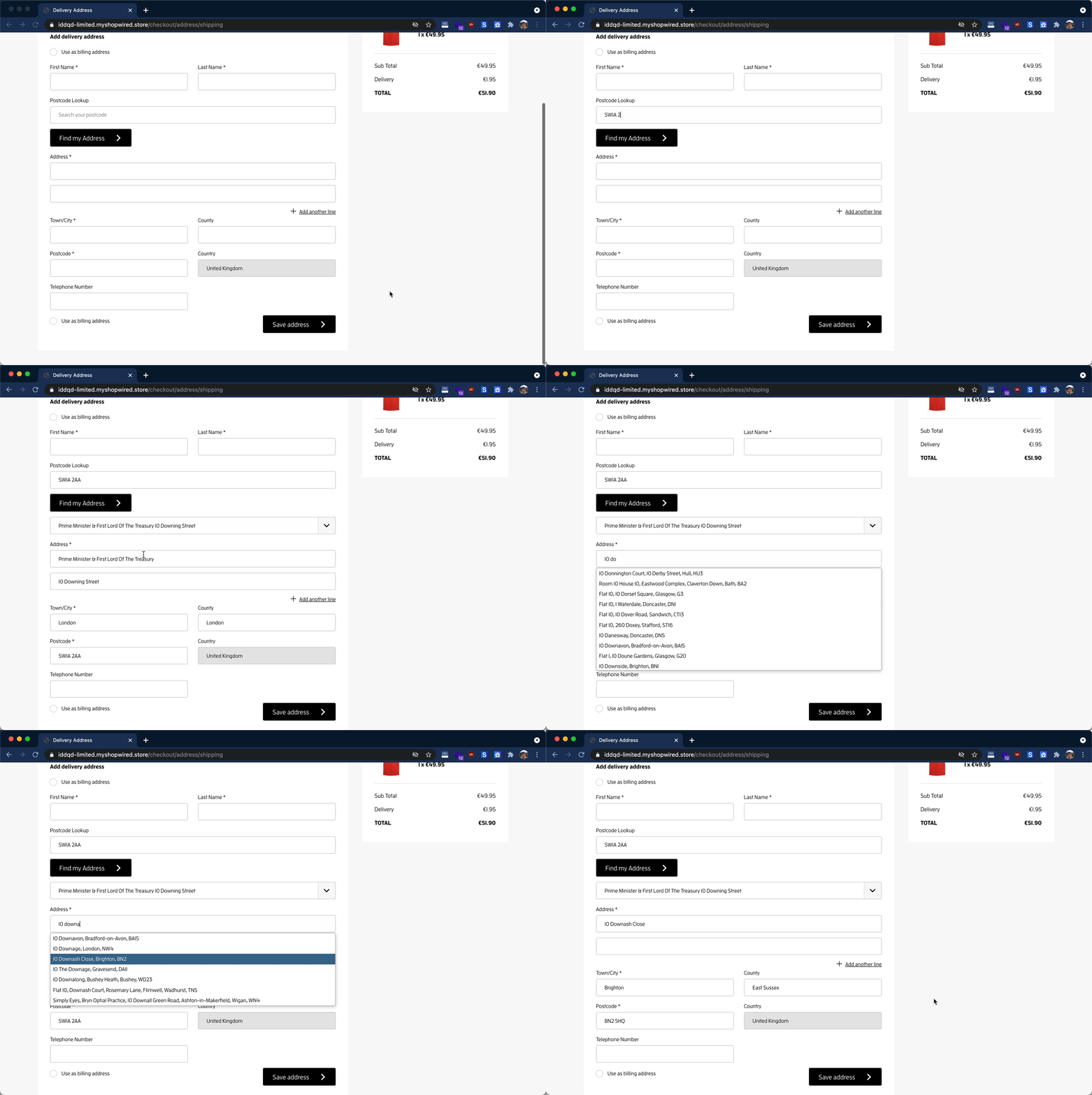
Address Lookup
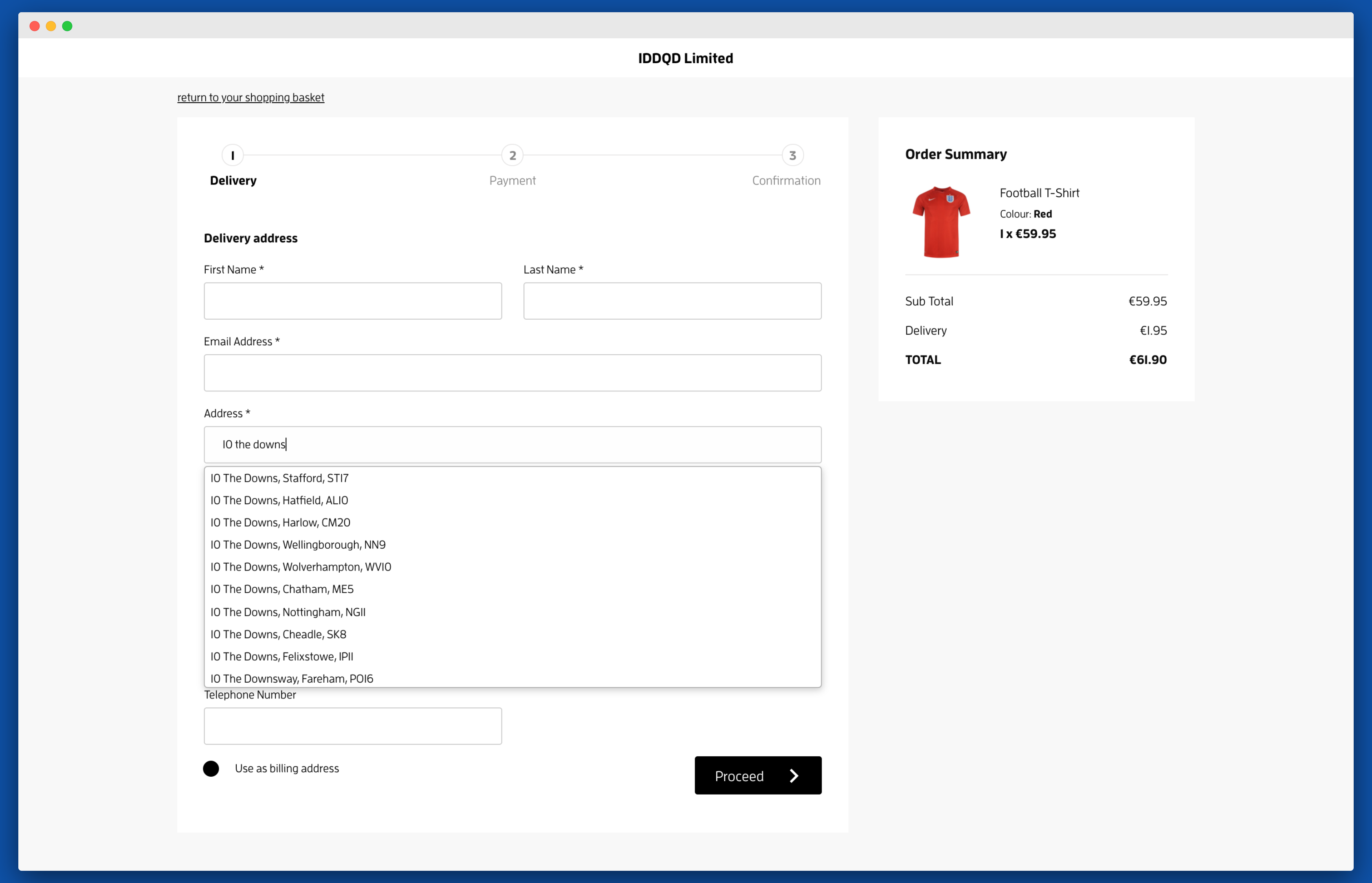
Enable on Checkout
To enable Address Validation on checkout, you will need to use ShopWired's Advanced Customization.
Access Advanced Customization
From the Administration page sidebar, navigate to Checkout → Platform Checkout and scroll down to Advanced Customization.
Insert Activation Code
In the Script contents editor, insert the below configuration code and click on Save.
<script>
  window.idpcConfig = {
    apiKey: "Your API Key goes here"
  };
</script>

<script
  async
  type="text/javascript"
  crossorigin="anonymous"
  src="https://cdn.jsdelivr.net/npm/@ideal-postcodes/shopwired@2">
</script>
When inserting the configuration and initialization codes into the editor, take special care to replace the following:
- The
apiKeyattribute in the first script tag. This should be replaced with the Key on your account.
Enable on Accounts
To enable Address Validation on user accounts and other pages you will need to update your ShopWired theme template.

Access Theme Templates
From the Administration page sidebar, navigate to Themes → Installed Themes and click on Page Editor.
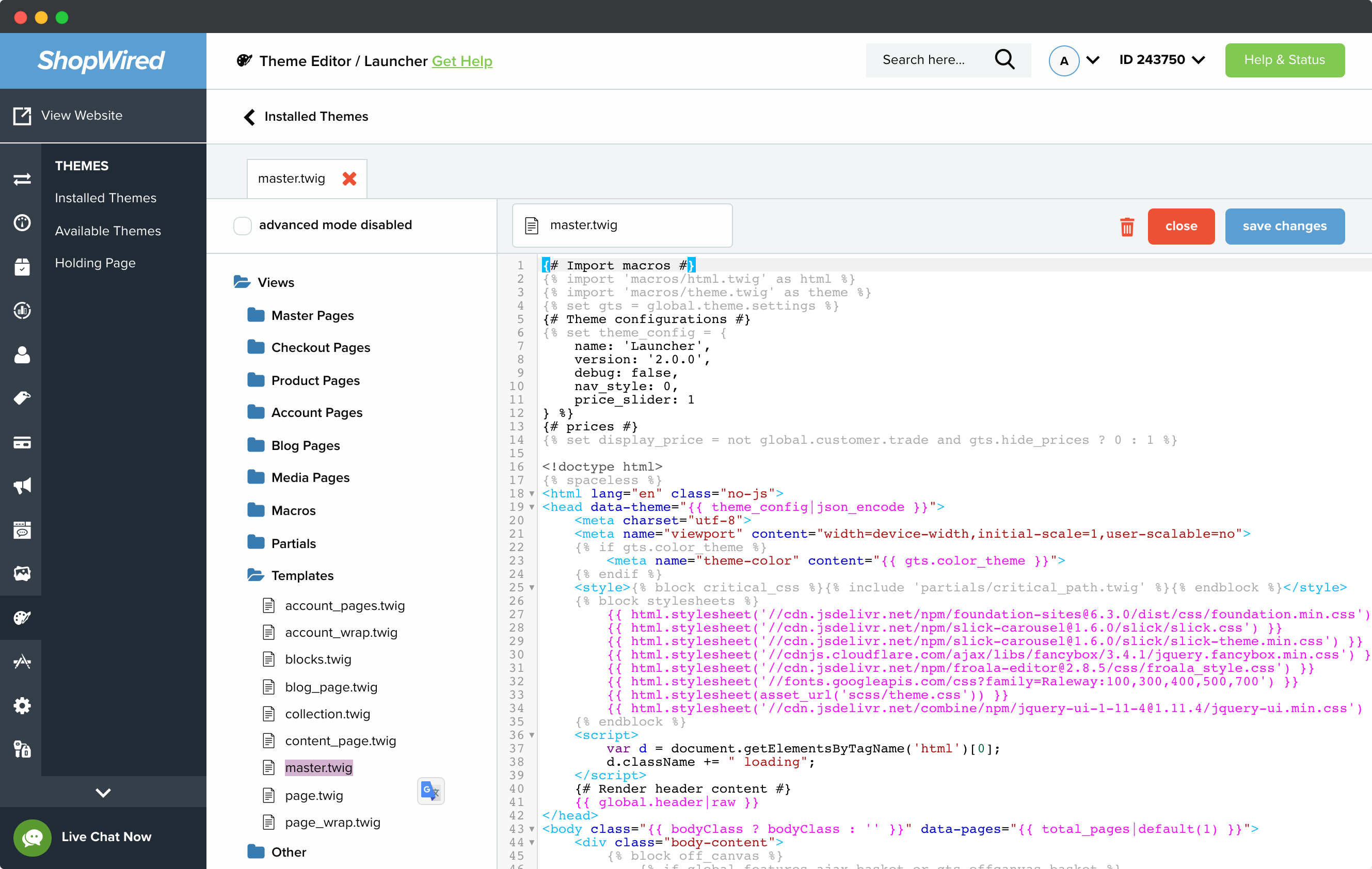
Insert Activation Code
From the Page Editor, click on Views then Templates then master.twig. At the bottom of the editor before </body>, add the same activation code as the checkout section (above).
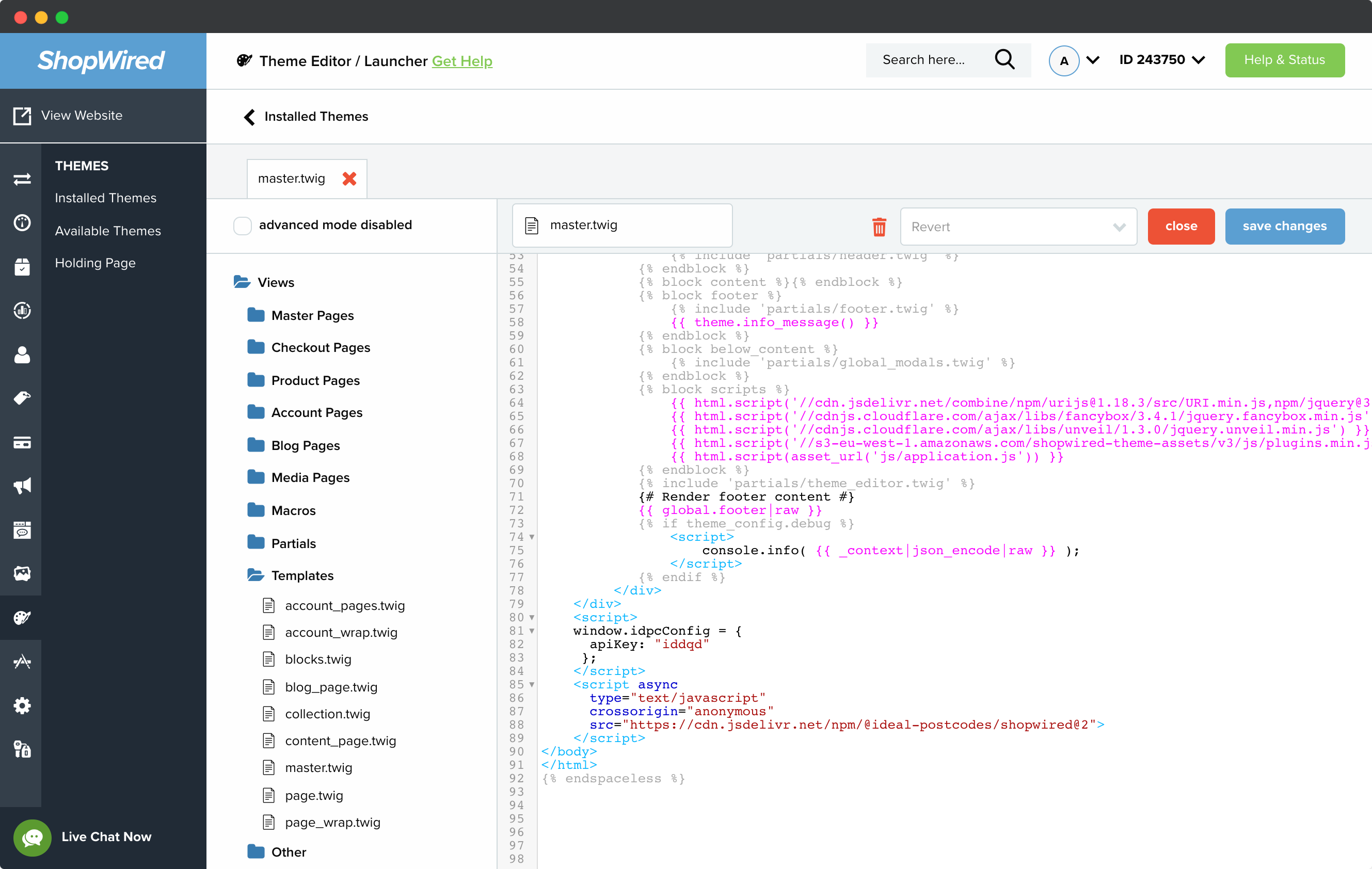
Once again update apiKey.
Configuration
The minimum configuration is as follows:
<script>
  window.idpcConfig = {
    apiKey: "Your API Key goes here"
  };
</script>
See our integration configuration guide to understand how to customize this.
Defaults
The available configuration attributes for the configuration are as follows:
{
   // API Key is not set by default
  apiKey: "",

  // Autocomplete is enabled
  autocomplete: true,

  // Company name field is updated
  populateOrganisation: true,
  // County name field is not updated
  populateCounty: false,

  // Advanced configuration
  autocompleteOverride: {},
}
Upgrades
This integration will be continually updated without your action. However, there will be occasions when a breaking change is introduced. When this happens we will increment the version number at the end of the script src.