# 
Integrate Address Validation to Your Unbounce Form
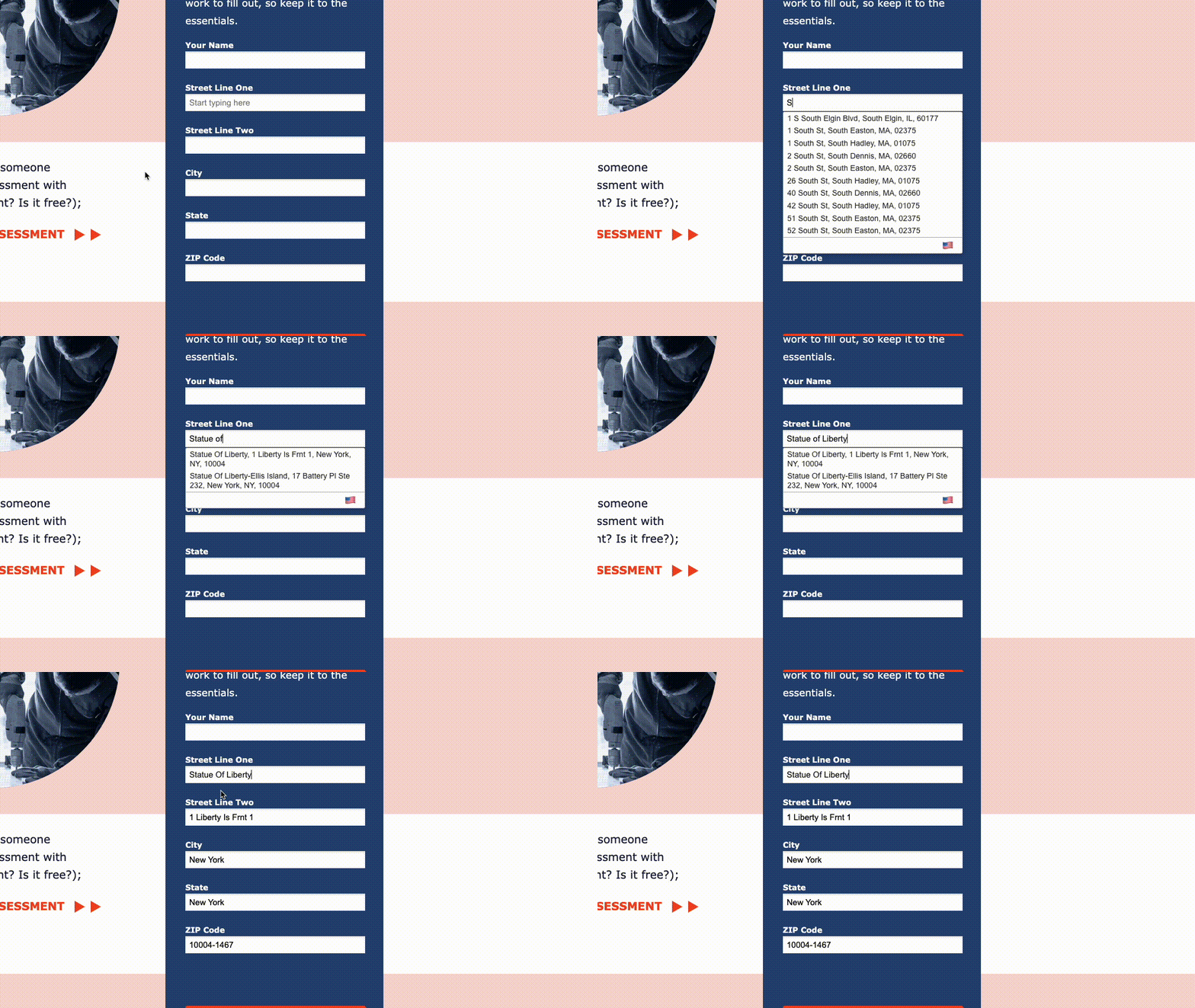
## Demo[](#demo "Direct link to Demo")
## Installation[](#installation "Direct link to Installation")
This integration works by inserting scripts and stylesheets into the Unbounce Builder page.
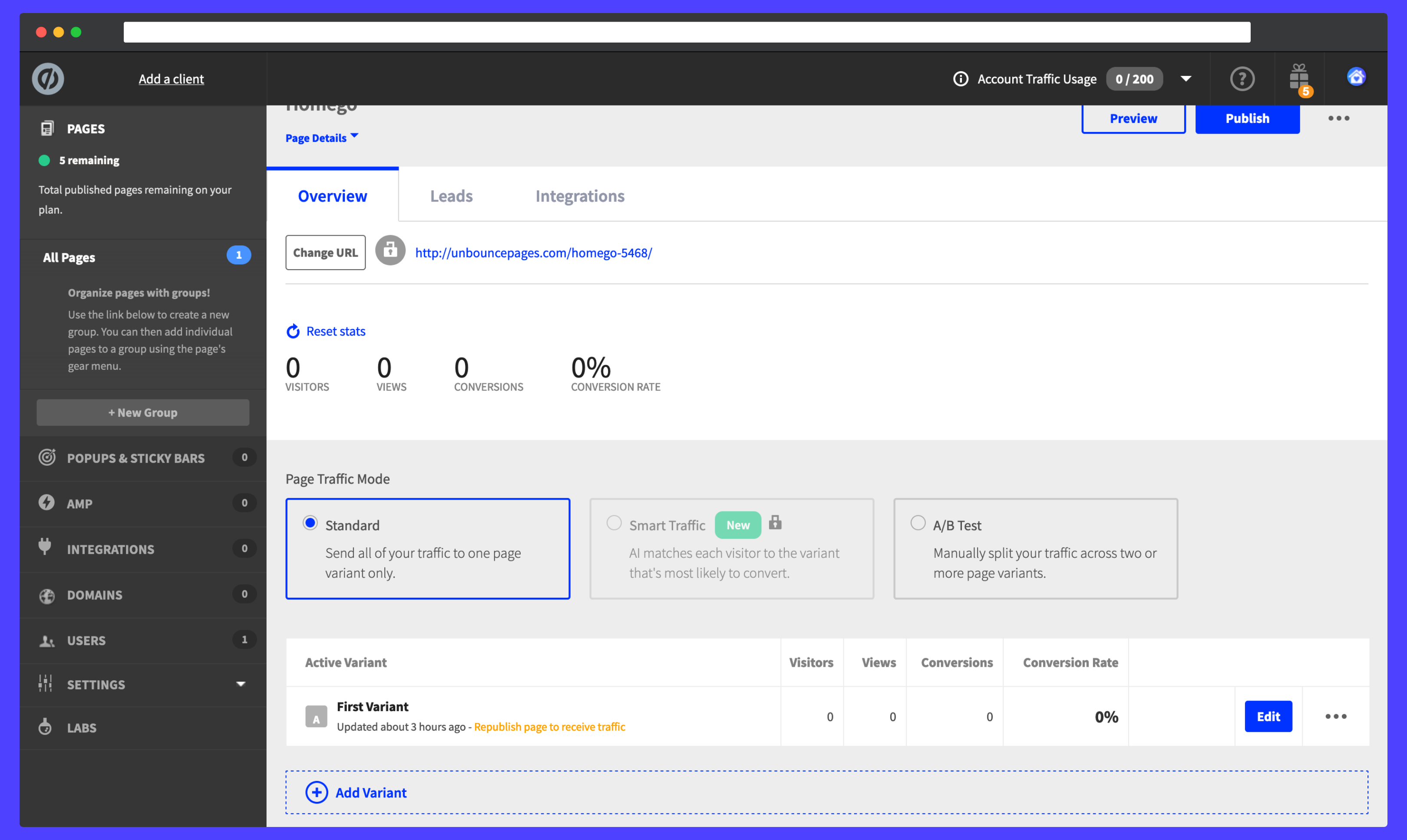
### Access Dashboard[](#access-dashboard "Direct link to Access Dashboard")
From the Unbounce dashboard, click on your page. On the `Overview` tab, scroll down the page to the `Active Variant` panel and click on the blue `Edit` button.
### Create Address Fields[](#create-address-fields "Direct link to Create Address Fields")
Next click on the address form. You will be directed to a modal where you can start adding address input fields to your form. A basic address form to capture a correct US address requires the following fields:
* Street Line One
* Street Line Two
* City
* State
* ZIP Code
You can optionally include additional fields.
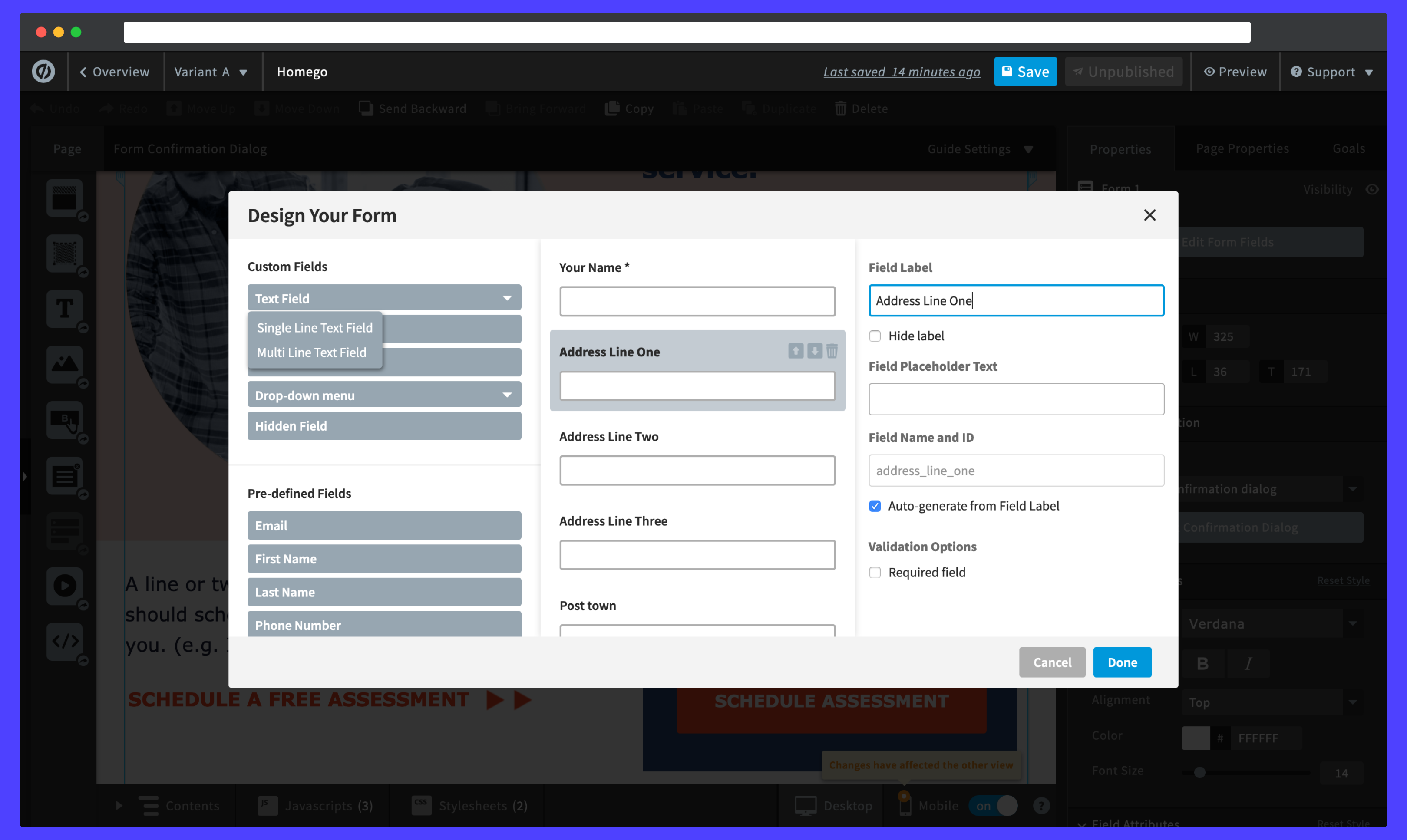
Be sure to create an input label to search for an address. Should you wish to hide the text, you can click on the `Hide label` checkbox. When selecting a label, you can alter its position in the form by clicking on the up and down arrows to the right of the panel.
### initialize Address Lookup Plugin[](#initialize-address-lookup-plugin "Direct link to initialize Address Lookup Plugin")
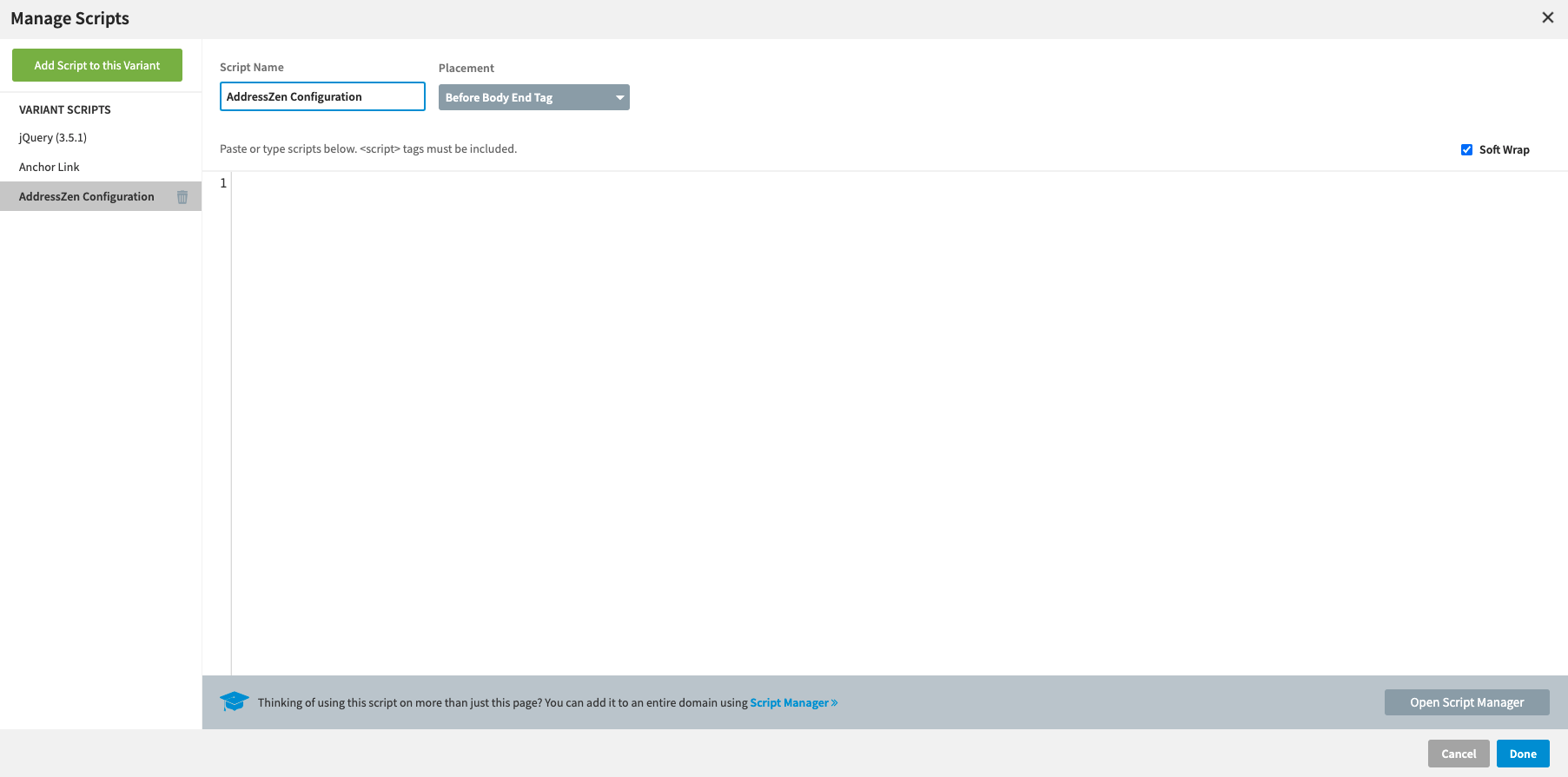
Navigate to the bottom of the Unbounce Builder page.
Click on the `JavaScripts` tab, followed by `Add New JavaScript`. Give the script a name and paste in the following scripts:
```
```
The values for the address lines correspond to the names set when creating the input fields.
info
Make sure you update the value for the `apiKey` with your own API Key. Your API Key typically begins with `ak_`.
Click on `Done` and remember to also save any progress.
## Configuration[](#configuration "Direct link to Configuration")
See our [Address Lookup Plugin Documentation](/docs/address-lookup.md) if you wish to customize Address Lookup.
info
If you need support, you can reach out to us on our [support page](https://addresszen.com/support).