# Formstack Integration
## Demo[](#demo "Direct link to Demo")
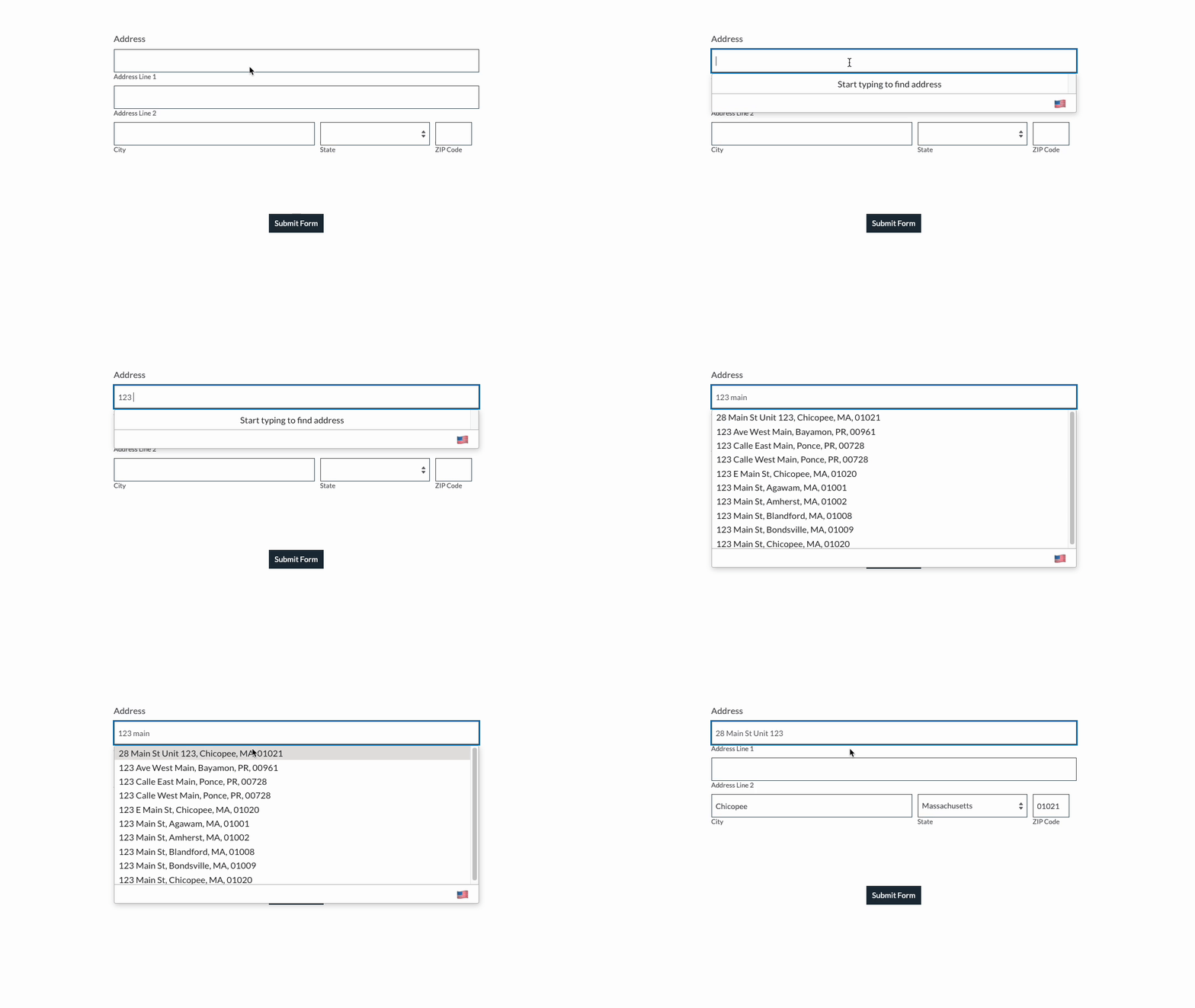
### Default Address Field[](#default-address-field "Direct link to Default Address Field")
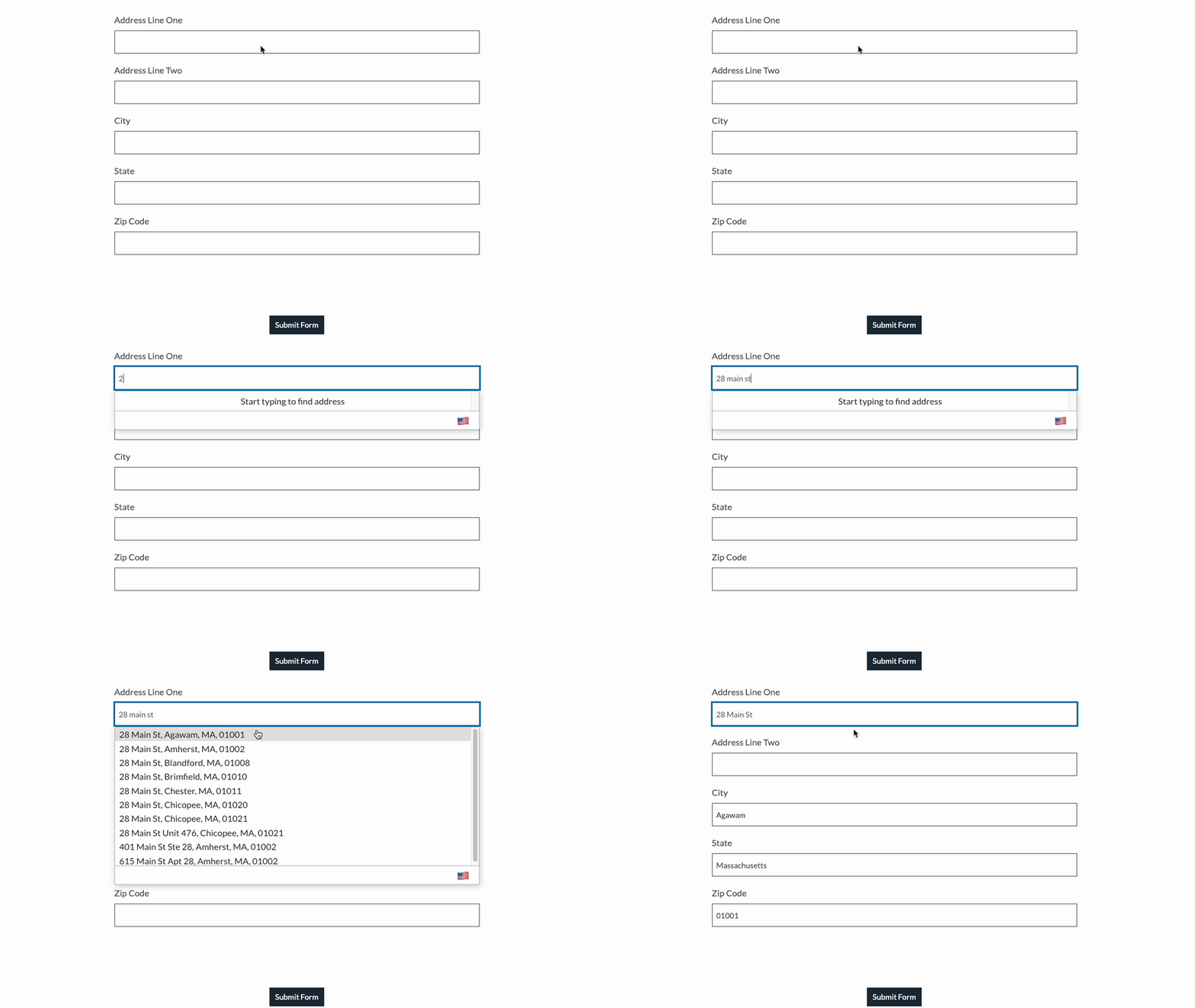
### Short Answer Fields[](#short-answer-fields "Direct link to Short Answer Fields")
## Installation[](#installation "Direct link to Installation")
There are 2 ways of creating your address form. You can use either:
* Address field
* Short Answer Field
### Using the Address Field[](#using-the-address-field "Direct link to Using the Address Field")
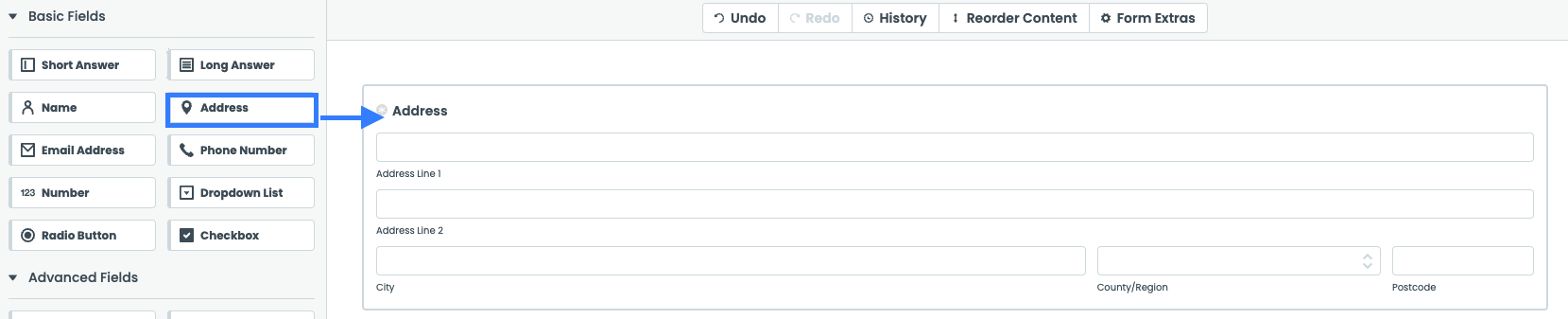
You can find the Address field under Basic fields. Drag and drop it to the form builder.
#### Initialise Address Lookup[](#initialise-address-lookup "Direct link to Initialise Address Lookup")
Under the `Advanced Field` menu, click `Embed Code` and drag it below the form you have created.
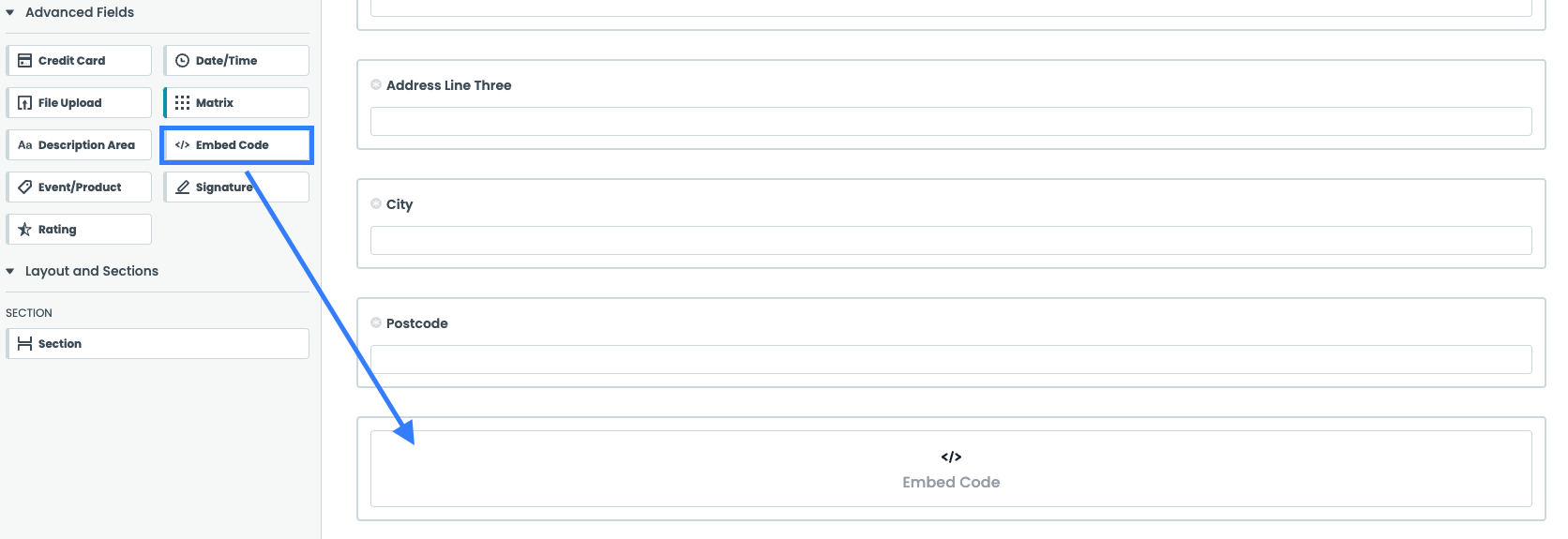
Click on the embed code field and paste the code below:
```
```
note
Make sure to
* Update the value for the apiKey with your own API Key. Your API Key typically begins with `ak_`.
* Update the field selectors so they match your input fields
### Using the Short Answer Fields[](#using-the-short-answer-fields "Direct link to Using the Short Answer Fields")
Add address input fields to your form. These should be created using `Short Answer` found under Basic Fields. A basic address form to capture a correct US address requires the following fields:
* Street Line One
* Street Line Two
* City
* State
* Postcode

#### Initialise Address Lookup[](#initialise-address-lookup-1 "Direct link to Initialise Address Lookup")
Under the `Advanced Field` menu, click `Embed Code` and drag it below the form you have created.

Click on the embed code field and paste the code below:
```
```
note
Make sure to
* Update the value for the apiKey with your own API Key. Your API Key typically begins with `ak_`.
* Update the field selectors so they match your input fields
#### Optional: Customise the Address Finder Script[](#optional-customise-the-address-finder-script "Direct link to Optional: Customise the Address Finder Script")
If you wish to add an additional field, include the parameter name [from our documentation](/docs/data/paf.md). For instance, adding a county field to your script will look like:
```
outputFields:
{
line_1: '#field165145846',
line_2: '#field165145899',
line_3: '#field165145898',
post_town: '#field165145897',
county: '#field165145456',
postcode: '#field165145860',
},
```
info
If you need support, you can reach out to us on our [support page](https://addresszen.com/support).