# 
## Demo[](#demo "Direct link to Demo")
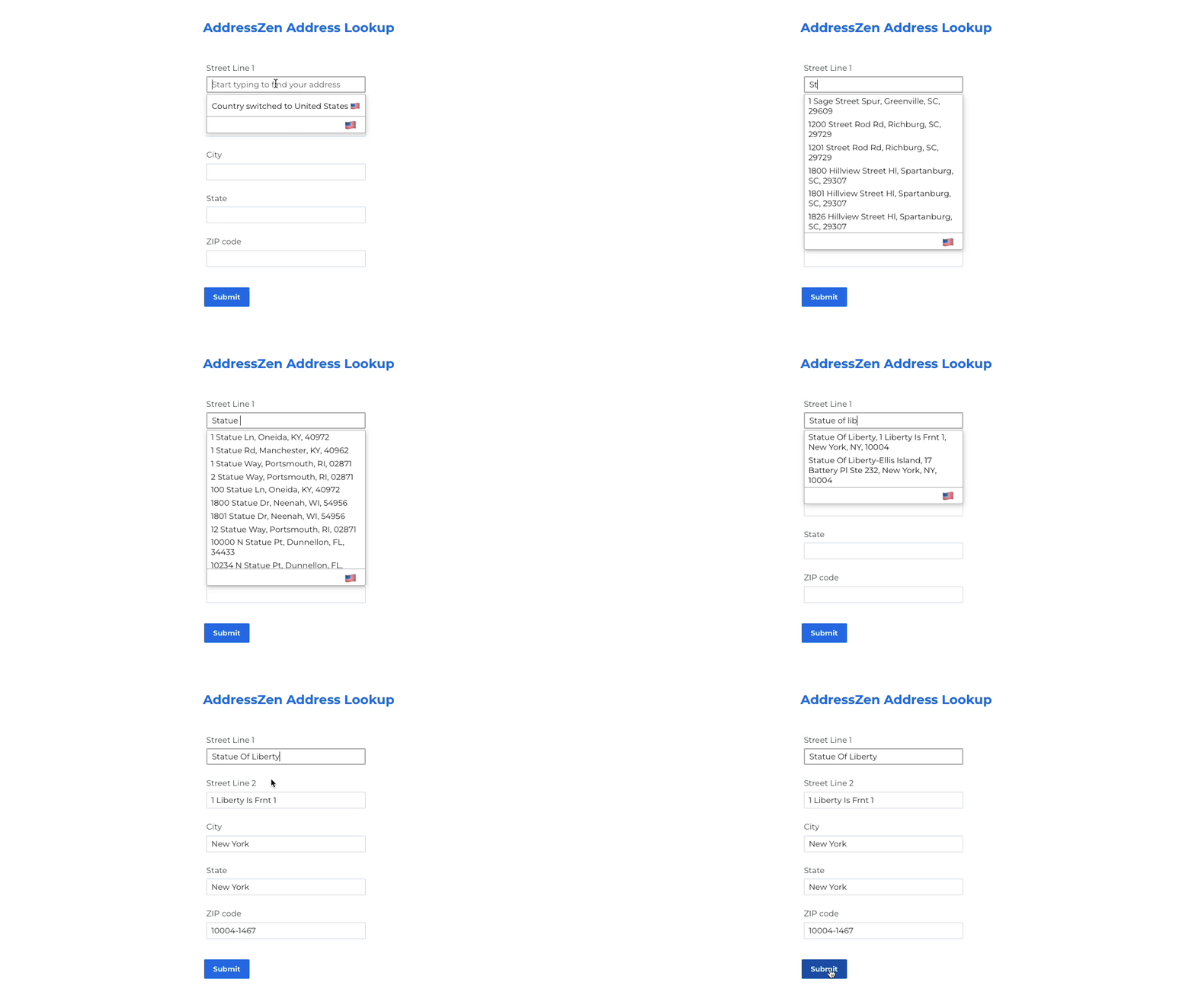 Integrate Address Validation to Your FormAssembly Pages.
## Installation[](#installation "Direct link to Installation")
This integration works by adding our Address Lookup tool using FormAssembly's custom code feature.
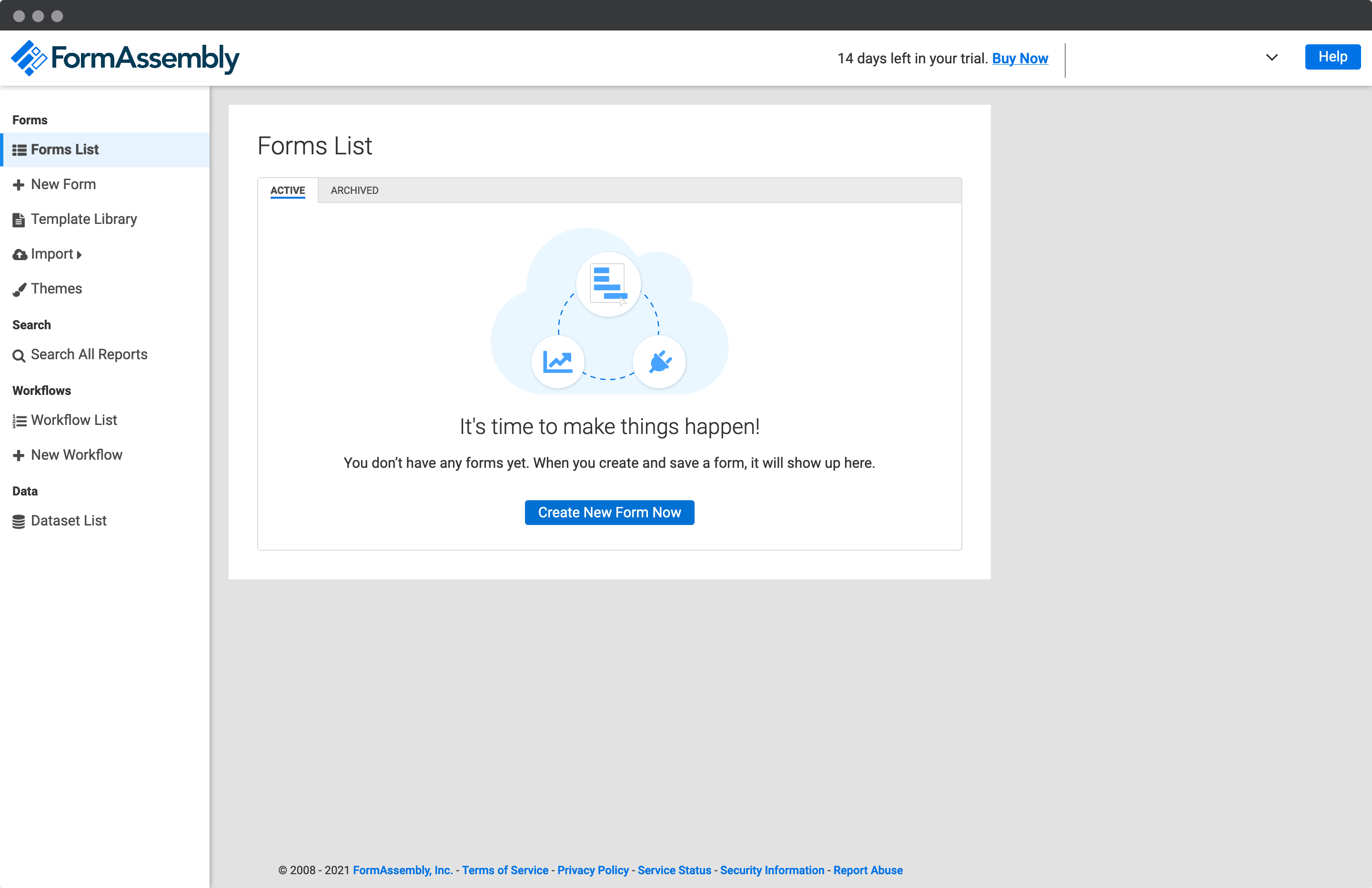
### Create Address Fields[](#create-address-fields "Direct link to Create Address Fields")
On your form, firstly add an Address Lookup Field. You can do this by creating a text input field and then updating the input label and/or placeholder to something like `Start typing to find your address`.
Next, create your Address inputs beneath. We recommend the following address structure to correctly capture US addresses:
* Street Line One
* Street Line Two
* City
* State
* ZIP Code
### Add Address Lookup[](#add-address-lookup "Direct link to Add Address Lookup")
#### Install and initialize Plugin[](#install-and-initialize-plugin "Direct link to Install and initialize Plugin")
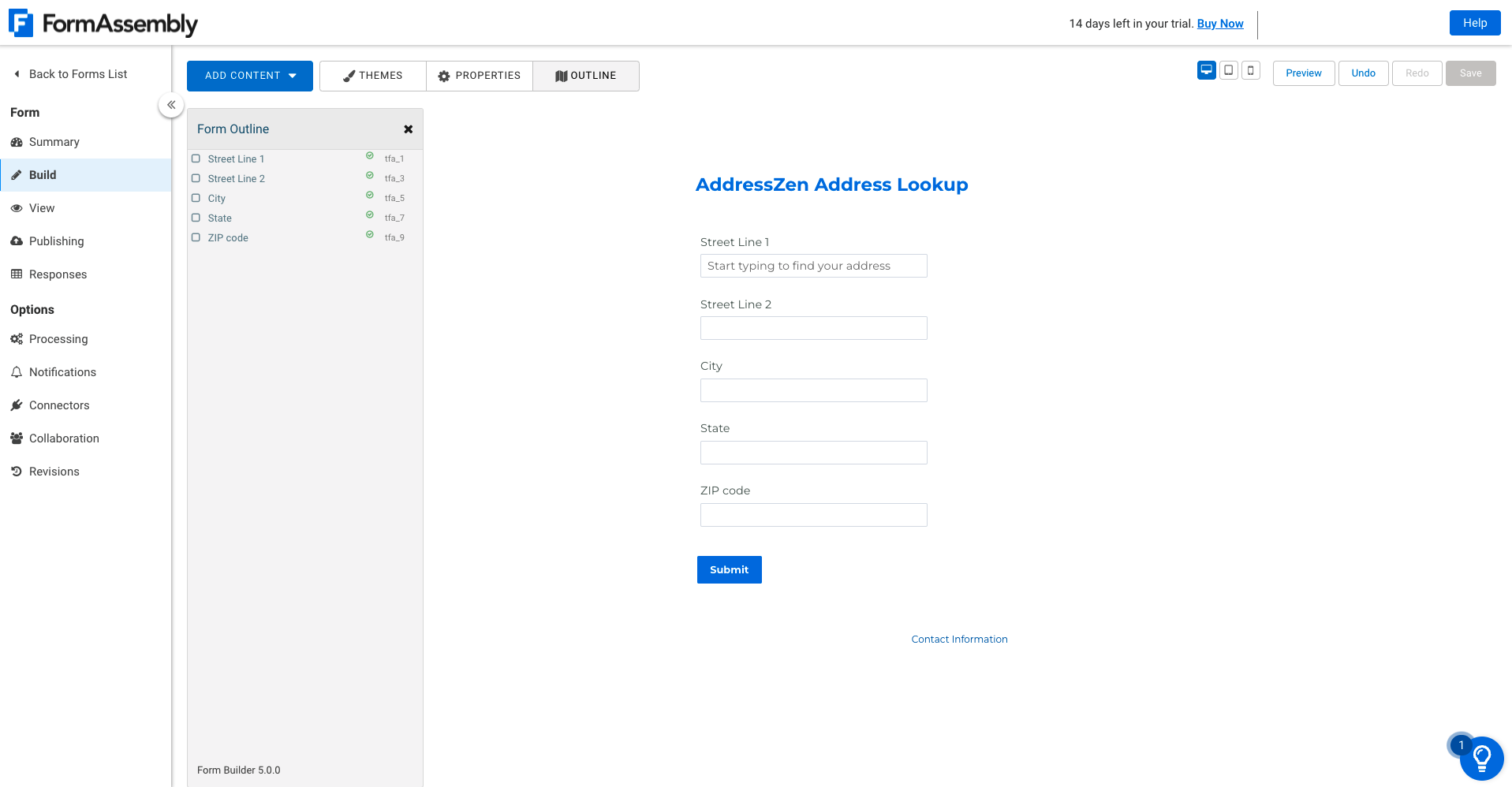
When your form is complete, make a note of the field names of your Address Lookup Field and your address fields. This is the grey text in the `Form Outline` box, you will need it to direct your user's selected address to the right fields.
Add our JavaScript library to your page with Custom Code. Click the `Properties` option on the top of the page. Next, in the `Form Properties` panel, click on `Custom Code`.
Add and adapt the following to load the plugin and then to initialize it.
```
```
caution
Take special care to:
1. Insert your API Key in the `apiKey` field
2. Match the names of your target fields. You can verify this on the 'Form Outline' panel. If the field name for Address Line One is `tfa_2`, `line_1:` should read `'input[name="tfa_2"]'`.
## Configuration[](#configuration "Direct link to Configuration")
See our [Address Lookup Plugin Documentation](/docs/address-lookup.md) if you wish to customize Address Lookup.
info
If you need support, you can reach out to us on our [support page](https://addresszen.com/support).