# Elementor
Add address autocompletion and postcode lookup to your Elementor pages.
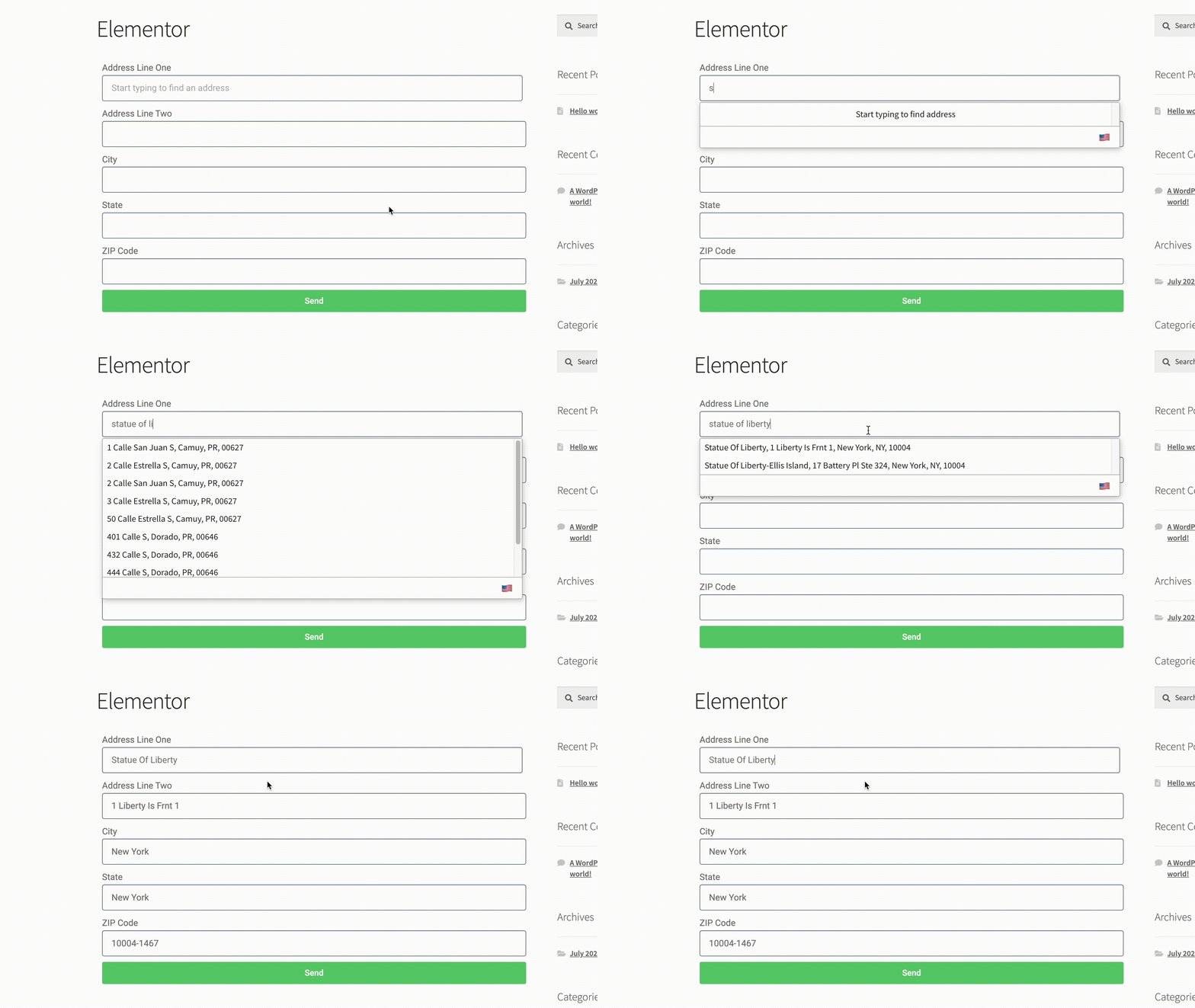
## Demo[](#demo "Direct link to Demo")
## Installation[](#installation "Direct link to Installation")
### Create Address Inputs[](#create-address-inputs "Direct link to Create Address Inputs")
This integration works by adding our Address Validation tools using Elementor's page builder. This requires you to upgrade your account to the Pro version to access the necessary components. Below are the instructions to add Postcode Lookup or Address Finder.
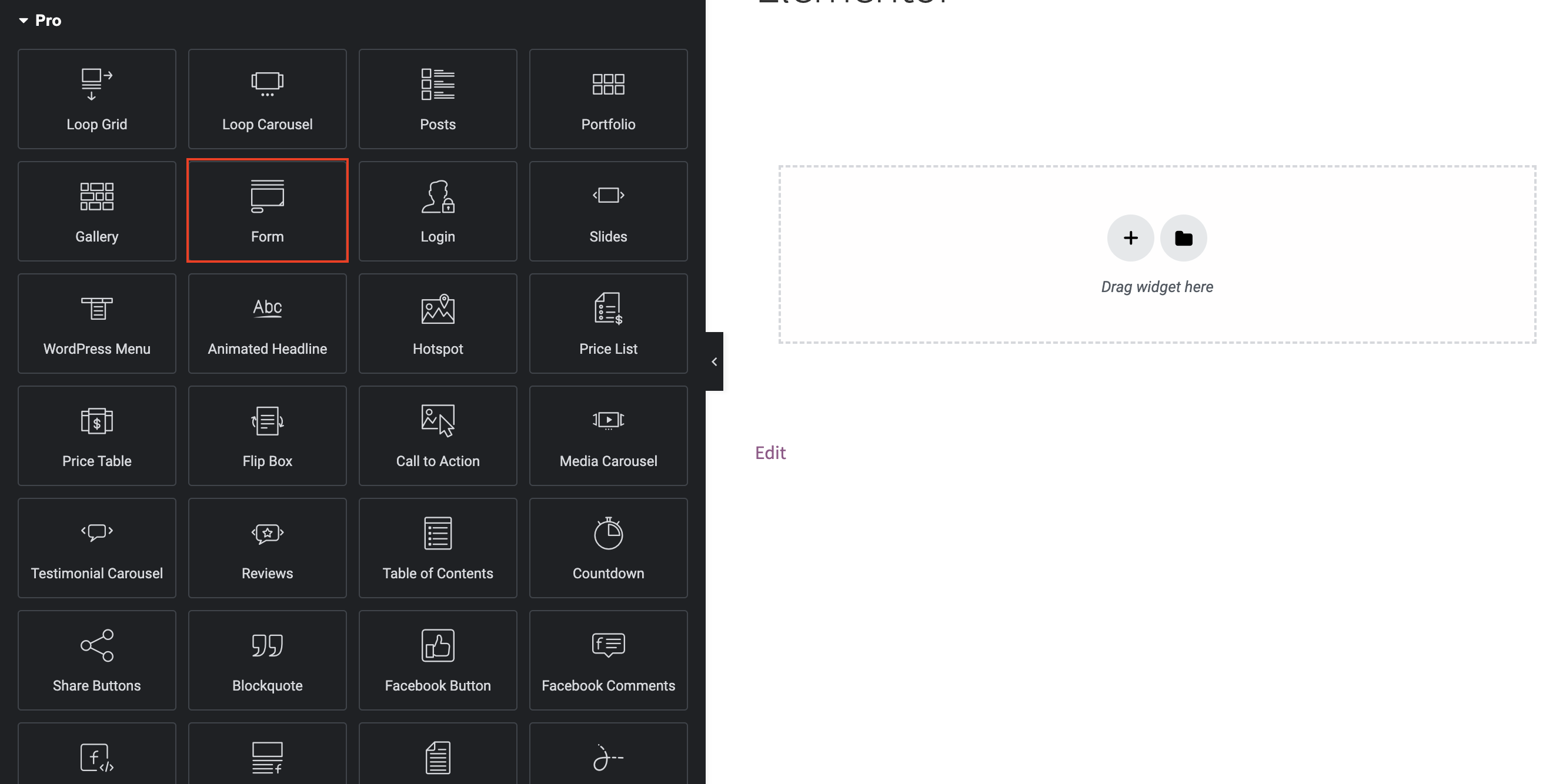
First create a form; to do this on Elementor scroll down to the Pro section on the left-side menu and choose 'Form'
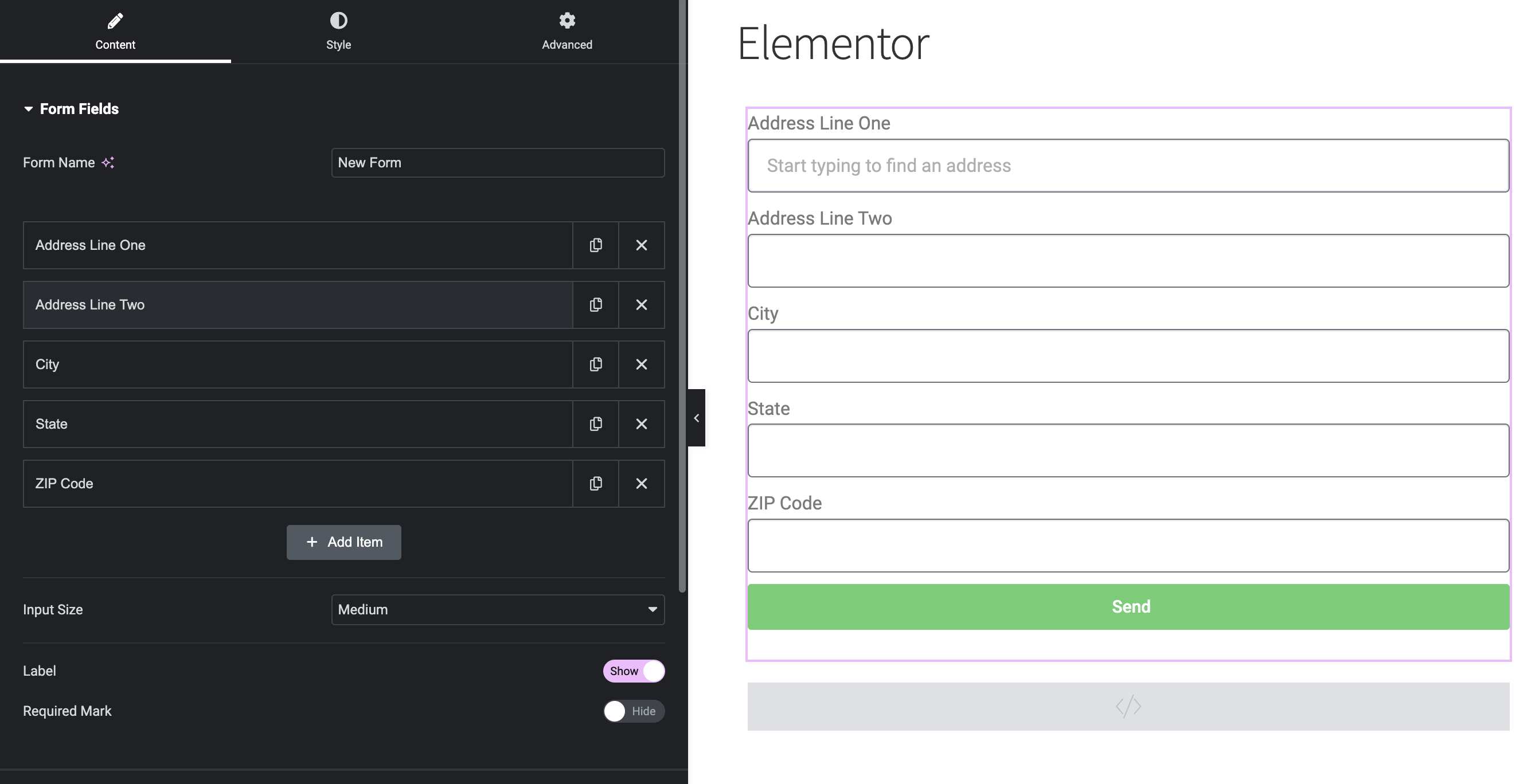
A basic address form to capture a correct US address should have the following fields:
* Street Line One
* Street Line Two
* City
* State
* Zip Code
You can optionally include additional fields, which are listed in the [Address data guide](/docs/data/usps.md).
### Add Address Lookup[](#add-address-lookup "Direct link to Add Address Lookup")
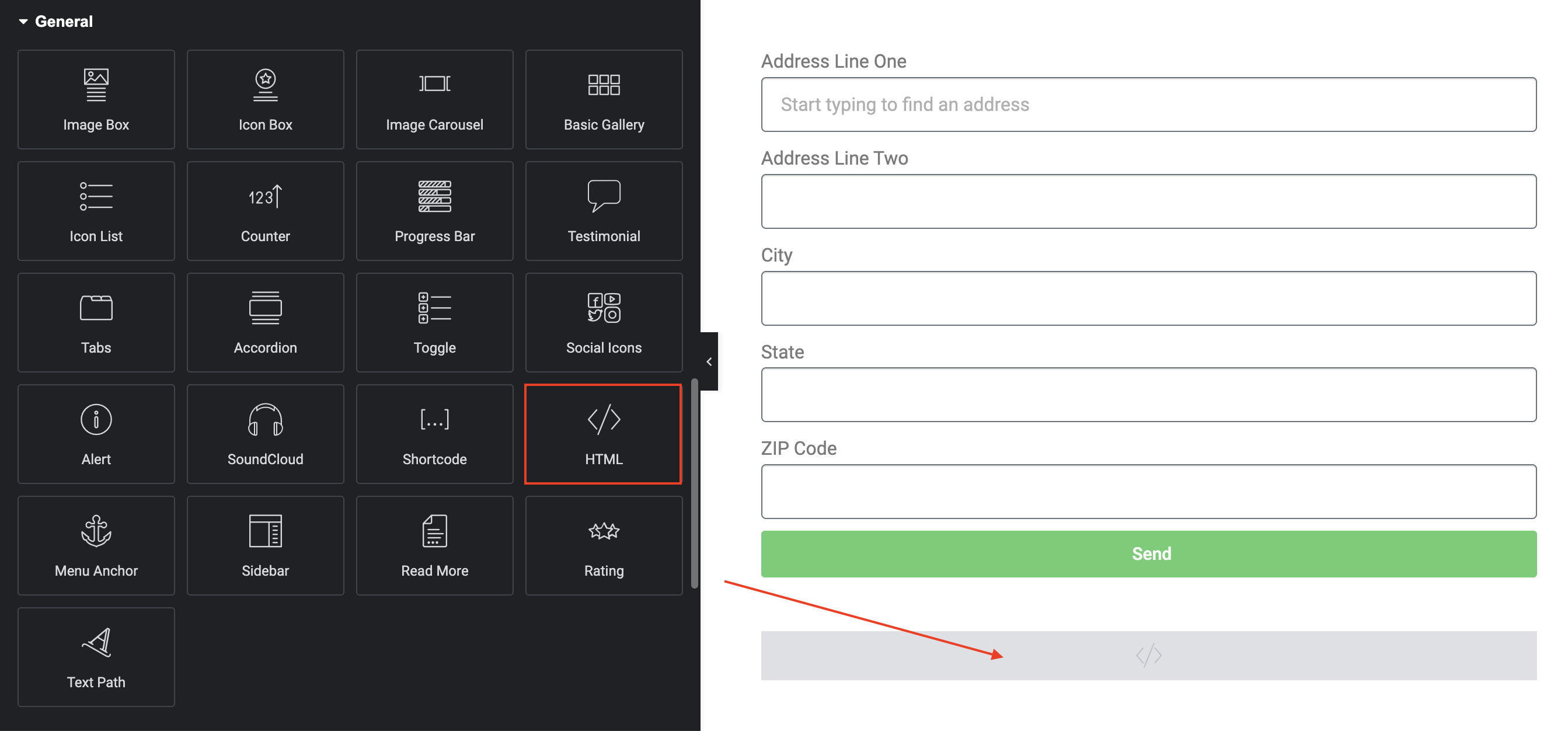
Look for the HTML component, it is located in the General section of the Elementor components menu. Place it underneath the form. Click on the HTML component and add the script below.
```
```
caution
Take special care to:
1. Insert your API Key in the `apiKey` field
2. Match the names of your address fields. If your Street Line One has an id=`address-line-one`, ensure that `line_1` reads `'#address-line-one'`
If you wish to add an additional field, include the parameter name [from our documentation](/docs/data/usps.md). For instance, adding a Building Name field with an ID `#form-field-building_name` will look like:
```
outputFields: {
building_or_firm_name: '#form-field-building_name',
line_1: '#form-field-line_1',
line_2: '#form-field-line_2',
line_3: '#form-field-line_3',
post_town: '#form-field-post_town',
postcode: '#form-field-postcode'
}
```
info
See our [Address Lookup Plugin Documentation](/docs/address-lookup.md) if you wish to customize Address Lookup.
info
If you need support, you can reach out to us on our [support page](https://addresszen.com/support).