
# Divi
Integrate Address Validation with the WordPress Divi Page Builder.
## Features
* Bind address autocompletion to your address fields
* Add one or more postcode lookup fields
## Screenshots
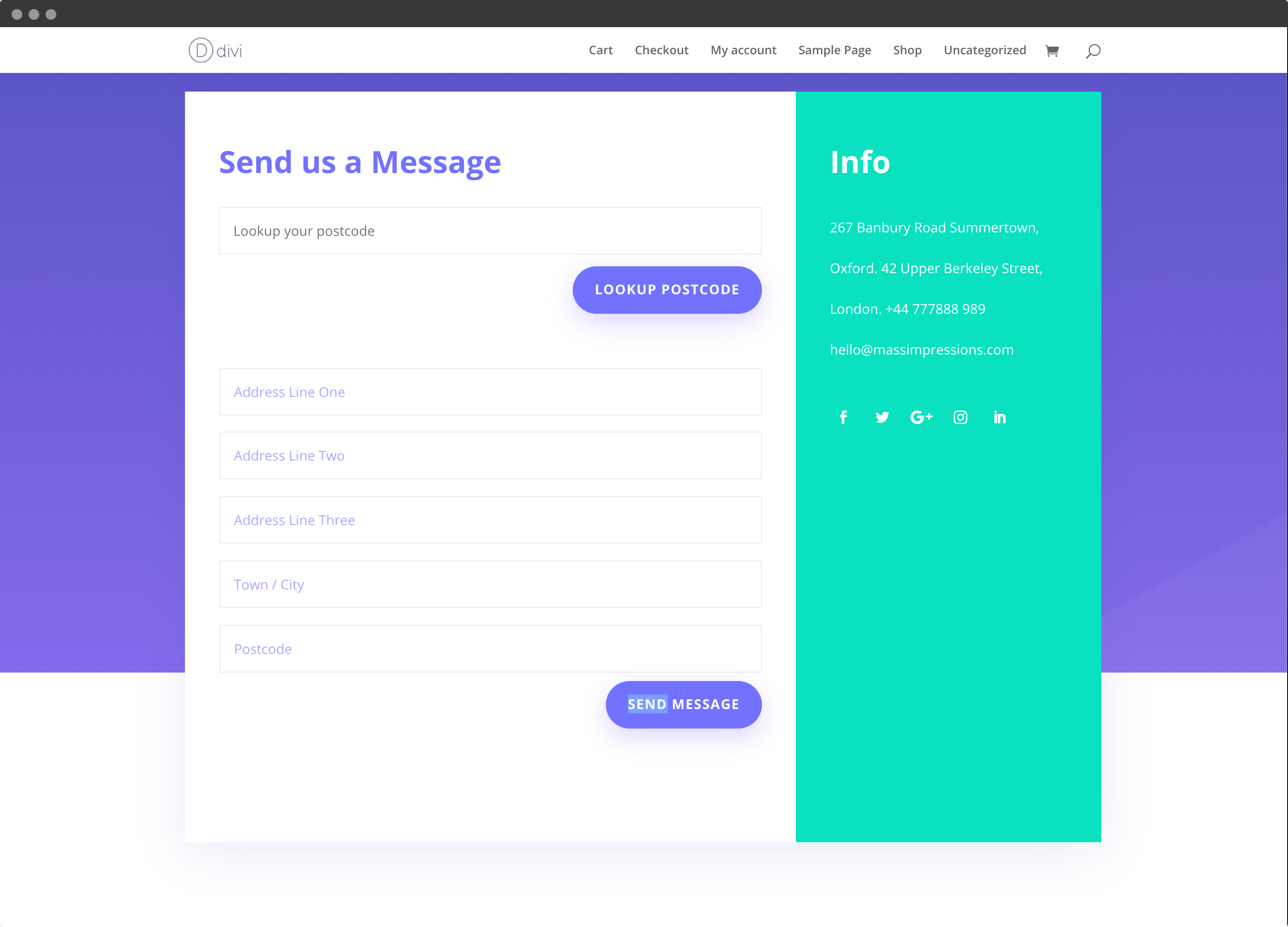
### Postcode Lookup
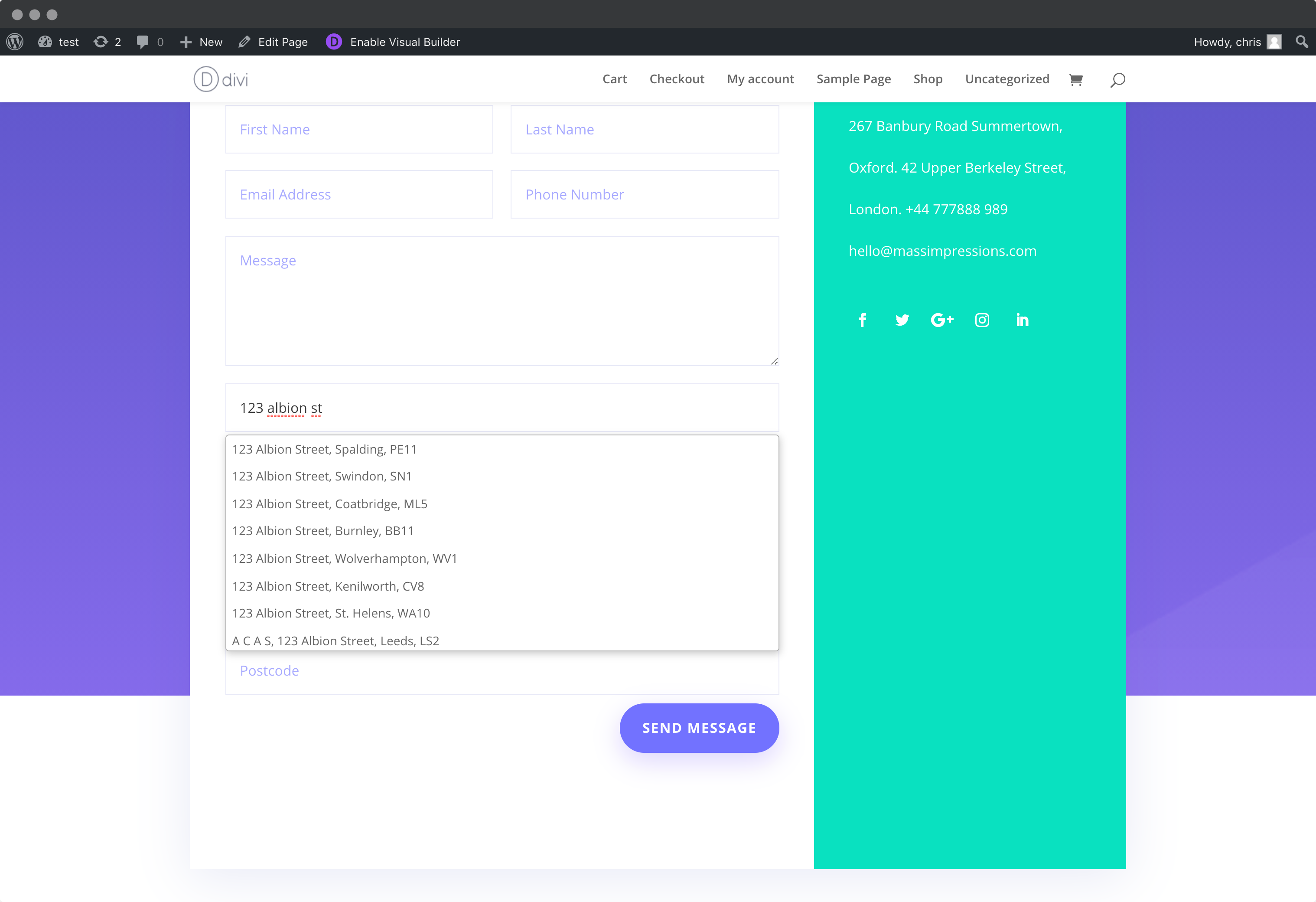
### Address Lookup
## Installation
Below are the instructions to add Postcode Lookup or Address Lookup.
### Create Address Inputs
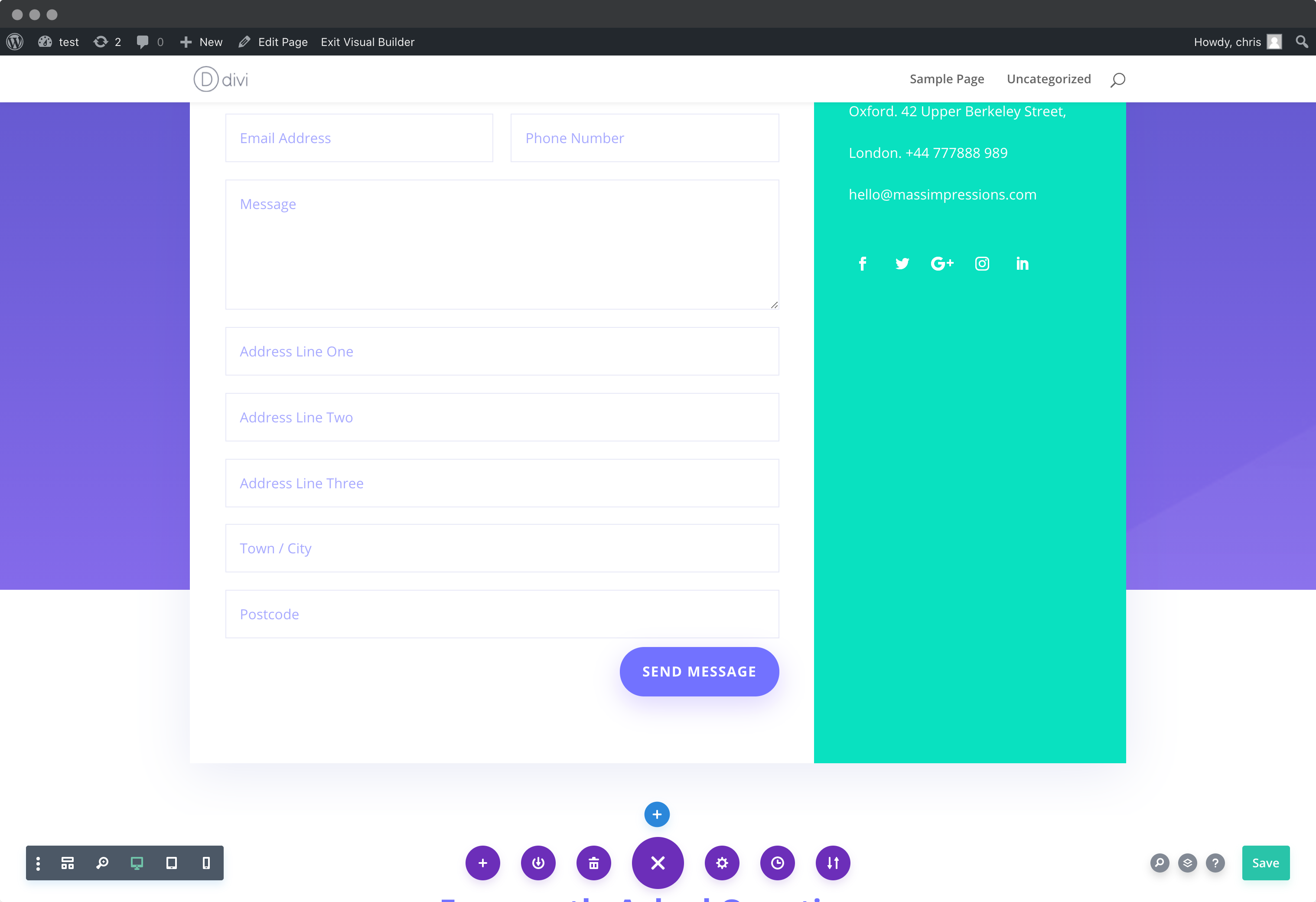
Add address input fields to your form. These should be created using `Single Line Text` fields found under `Standard Fields`.
A basic address form to capture a correct UK address requires the following fields:
* Address line one
* Address line two
* Address line three
* Post town
* Postcode
You can optionally include additional fields, which are documented in our [PAF documentation](/docs/api/find-address.md).
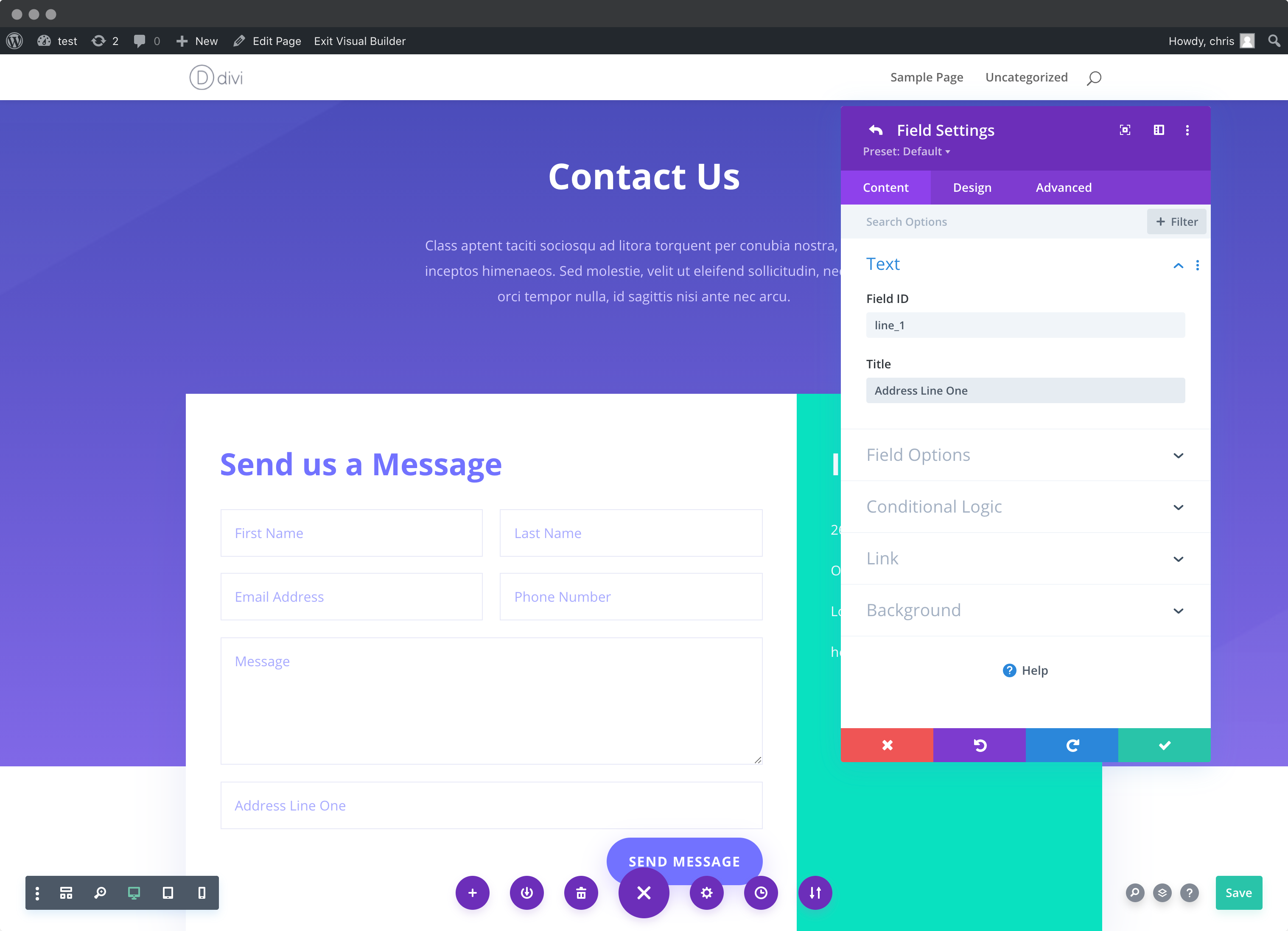
**Note the** `Field ID` number for each address field created. You will need this later to configure the Postcode Lookup Plugin and/or Autocomplete Plugin.
### Add Address Lookup
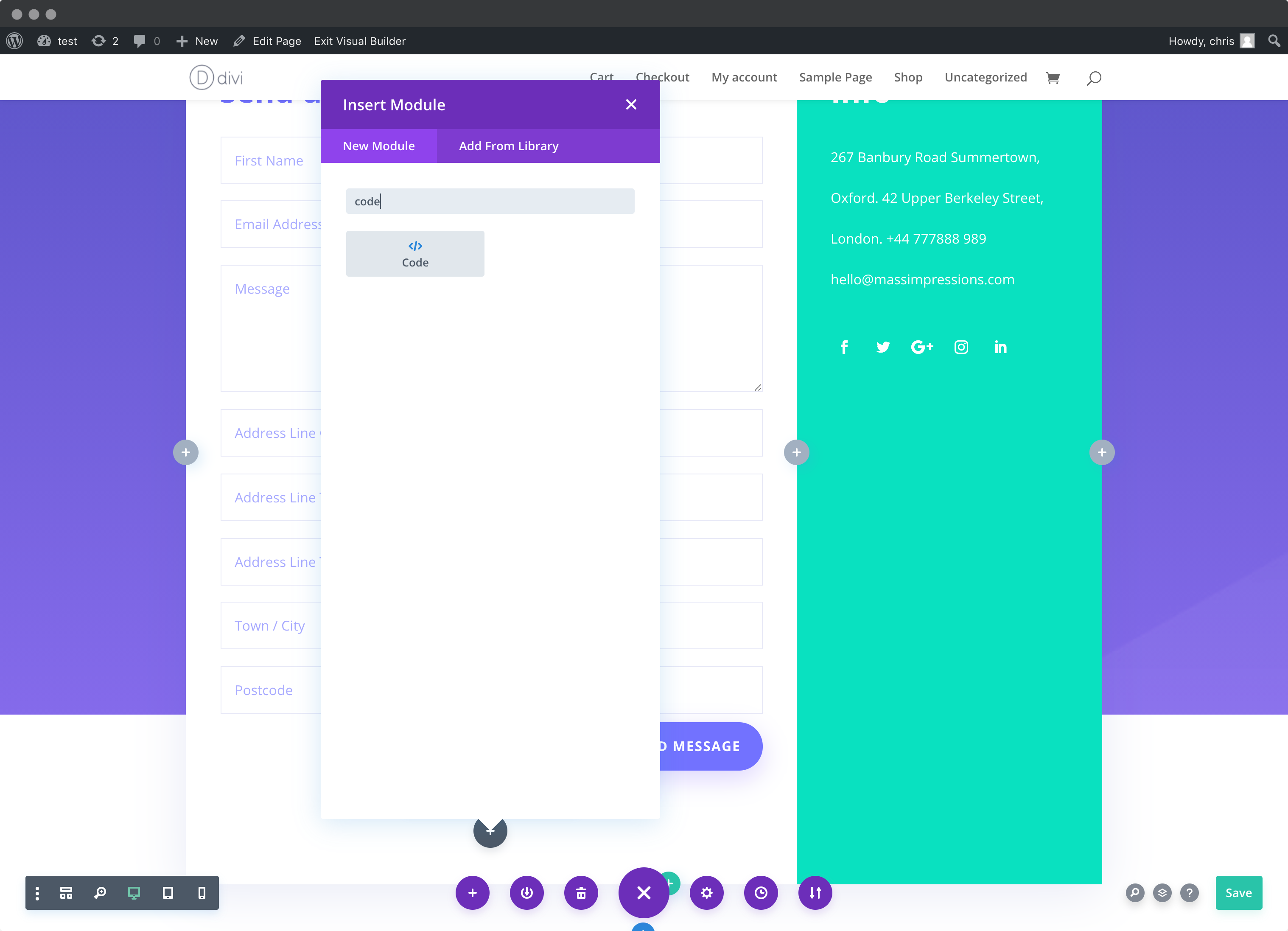
#### Install Plugin
Create a code block beneath your address form. Preferably, at the bottom point of your page. In the `Code` box add the Autocomplete Plugin script tags.
```html
```
#### Initialize Autocomplete
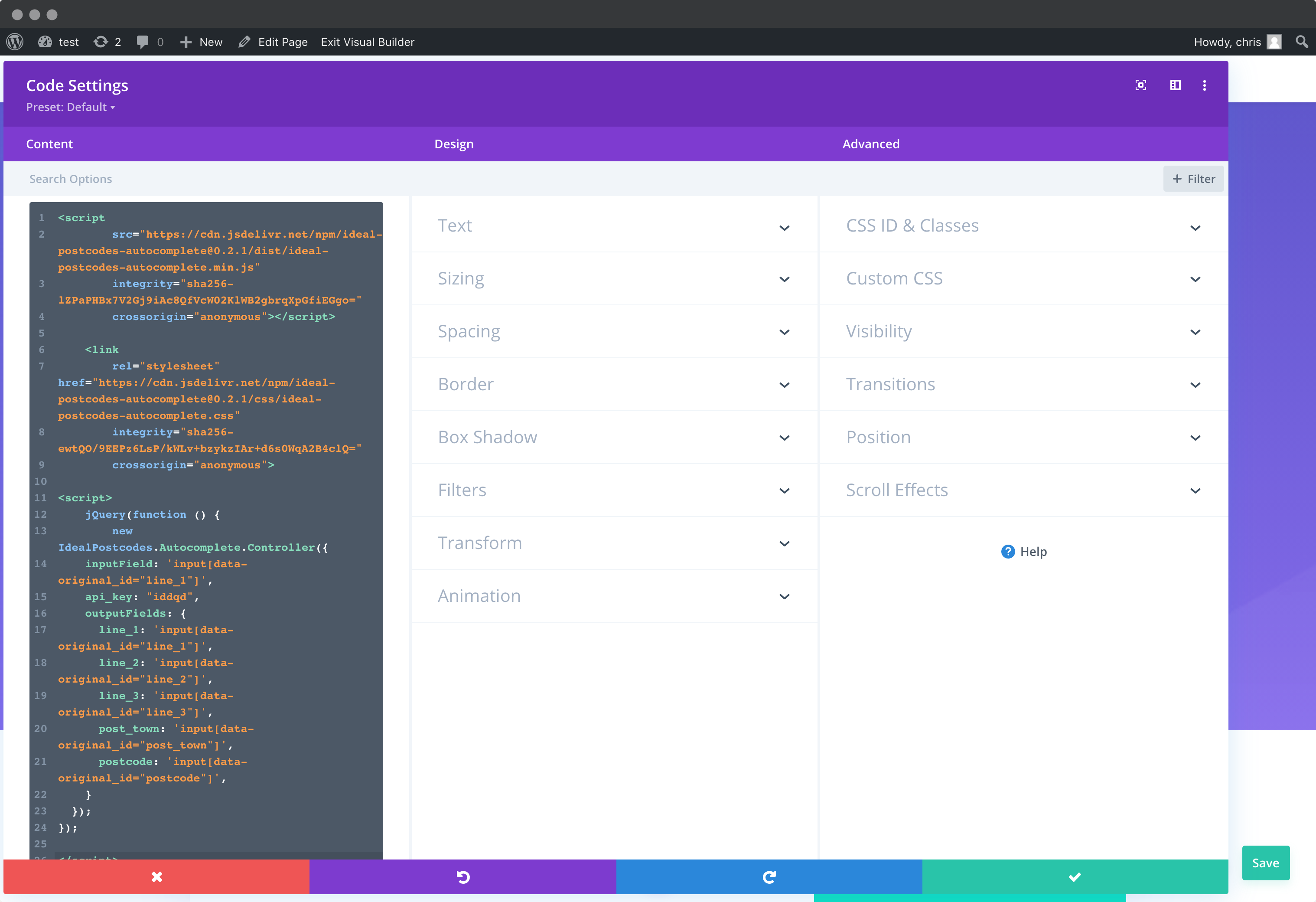
Now, in the same `Code` box as above, append the Autocomplete initialization code.
```html
```
You can optionally override CSS styles in the same `HTML` field:
```html
```
caution
Take special care to:
1. Insert your API Key in the `apiKey` field
2. Update the input field names of your target fields. If your Address Line One `Field ID` is `line_1`, this line should be replaced with `'input[data-original_id="line_1"]'`. Do this for all the address fields you wish to include
3. Ensure `inputField` points to the same field as Address line One
If you wish to add an additional field, include the parameter name [from our documentation](/docs/api/find-address.md). For instance, adding a county field with Field ID `county` will look like:
```javascript
outputFields: {
line_1: 'input[data-original_id="line_1"]',
line_2: 'input[data-original_id="line_2"]',
line_3: 'input[data-original_id="line_3"]',
post_town: 'input[data-original_id="post_town"]',
county: 'input[data-original_id="county"]',
postcode: 'input[data-original_id="postcode"]'
}
```
### Add Postcode Lookup
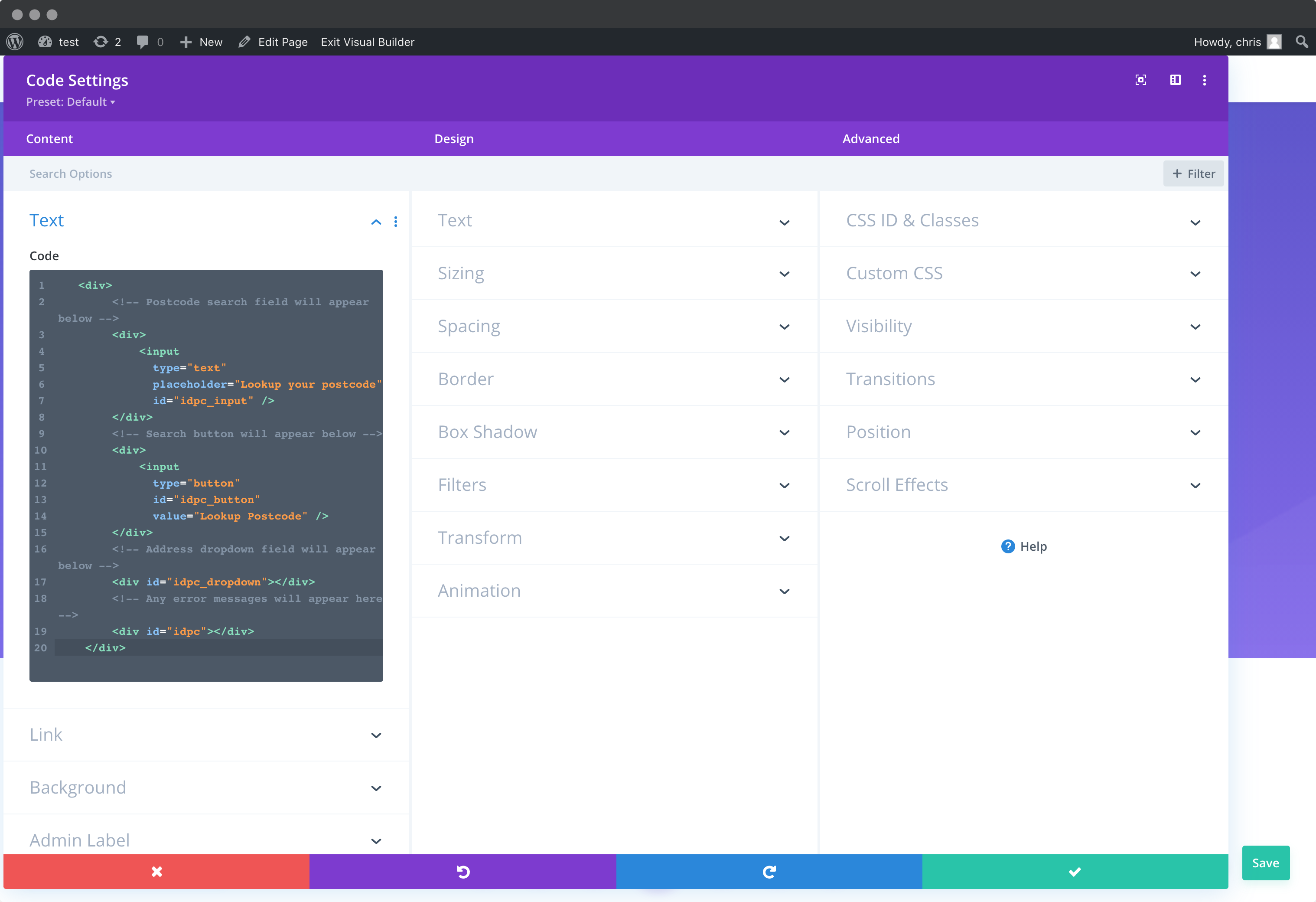
#### Add Postcode Lookup HTML elements
Create a new `Code` box above your form. This will provision the postcode search field, search button and address dropdown for the postcode lookup plugin.
```html
```
You will also need to append styles to suit your theme to the HTML above. The following snippet styles the postcode lookup fields according to a custom theme.
```html
```
#### Install Plugin
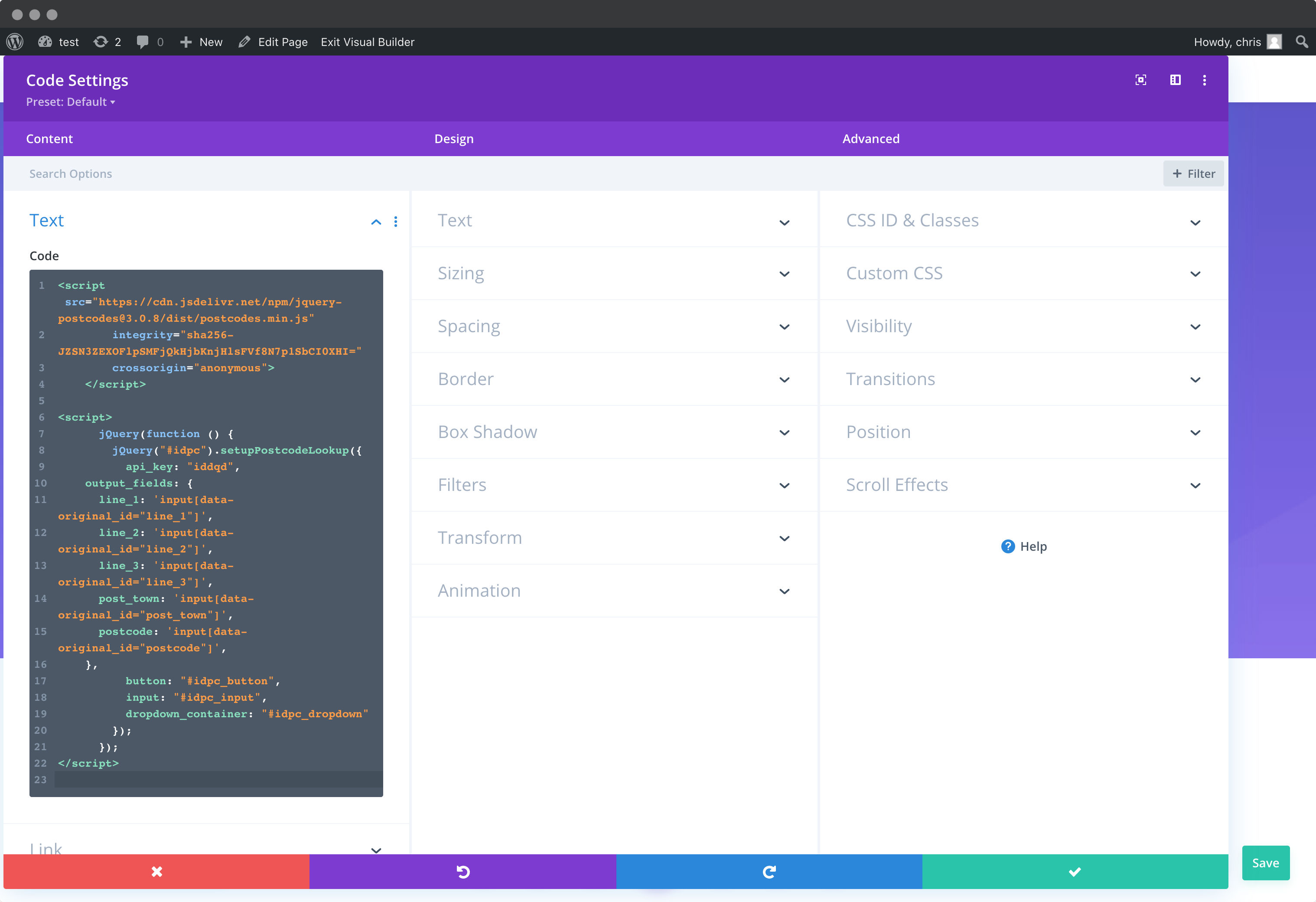
Add a `Code` box at the top of your form and add the Postcode Lookup plugin script tag.
```html
```
In the same Code box, add the Postcode Lookup initialization script.
```html
```
Take special care to:
1. Insert your API Key in the `apiKey` field
2. Update the input field names of your target fields. If your Address Line One `Field ID` is `line_1`, this line should be replaced with `'input[data-original_id="line_1"]'`. Do this for all the address fields you wish to include
3. Ensure `button`, `input` and `selectClass` match the IDs of the lookup button, lookup field and address dropdown container in the fields created in Step 2
If you wish to add an additional field, include the parameter name [from our documentation](/docs/api/find-address.md). For instance, adding a county field with Field ID `county` will look like:
```javascript
outputFields: {
line_1: 'input[data-original_id="line_1"]',
line_2: 'input[data-original_id="line_2"]',
line_3: 'input[data-original_id="line_3"]',
post_town: 'input[data-original_id="post_town"]',
county: 'input[data-original_id="county"]',
postcode: 'input[data-original_id="postcode"]'
}
```
## Configuration
See our [Address Lookup Plugin Documentation](/docs/address-lookup.md) if you wish to customize Address Lookup.
info
If you need support, you can reach out to us on our [support page](https://addresszen.com/support).